

The 7-Day Traffic Drop Audit: What to Check Before You Change Anything

A traffic drop audit checklist is a 7-day plan that confirms a fall and finds where it sits. It rules out simple faults, and it ends with a verdict before any site change is made. It uses Search Console and Google Analytics.
What kind of traffic drop is it? Name the type first
The Performance report covers the past 3 months by default. It shows site performance in Google Search results. One appearance in Search results counts as an impression, and one click on a result counts as a click.
Divide clicks by impressions for the click-through rate. Average position shows where the topmost result sits in Search results.
Drop types and first checks.
| Pattern | What it looks like | What it does not prove | First check next |
|---|---|---|---|
| Clicks down, impressions held | Clicks fall, impressions flat | It does not prove that there was no ranking loss | Read live results |
| Clicks and impressions down | Both measures fall | It does not prove that one cause explains the fall | Find where loss sits |
| Sudden cliff, one date | Sharp fall, one day | Timing alone does not prove a cause | Check change log |
| Gradual slide, weeks | Slow fall, week by week | It does not prove that one update caused the fall | Compare matched weekdays |
| One section only | Loss in one group | It does not prove that the whole site failed | Inspect group pages |
| One country or device | Loss in one place | It does not prove a sitewide fault | Split country, device |
| Analytics down only | Analytics falls, Console flat | It does not prove a Search fall | Check tag first |
When clicks fall and impressions hold, read the results page first. A sudden cliff points to a change on that date, and a gradual slide needs matched weekdays.
A loss in one section points to that group. A loss in one country or on one device points to that split.
Traffic can fall when a result slips from position 2 to 4, even while impressions stay near their old level. Do not rebuild a page that already draws clicks well. Wait for the freeze rule.
The traffic drop or AI Overview test owns the full clicks down test, with its confirmation checks.

Before Day 1: freeze changes and start the evidence log
Freeze all site changes for 7 days. Fix a fault only on Day 3, when a Day 3 check proves the fault. See What not to change for the full list.
No exception applies before Day 3.
- Site outage, server errors: the site does not load, or key pages return server errors. Prove it with a hosting or server check.
- Noindex or robots fault: key pages carry a noindex rule, set with a meta tag or HTTP header. It keeps the page out of Search results. Robots rules can block them, and URL Inspection shows the fault.
- Security issue: the Security Issues report shows a threat, including sample affected URLs.
- Broken redirect: a key page fails on a redirect, proved by the Page indexing report.
Start the evidence log, and fill it daily. Copy the blank table below, and keep one log. Open Search Console and analytics, with the change log.
The one log for the whole audit.
| Date | Check | What was found | Next step |
|---|---|---|---|
| Write here | Write here | Write here | Write here |
| Write here | Write here | Write here | Write here |

The 7-day traffic drop audit, day by day
Each day has one job and one record in the log. Stop work each day, and start the next job the next day.
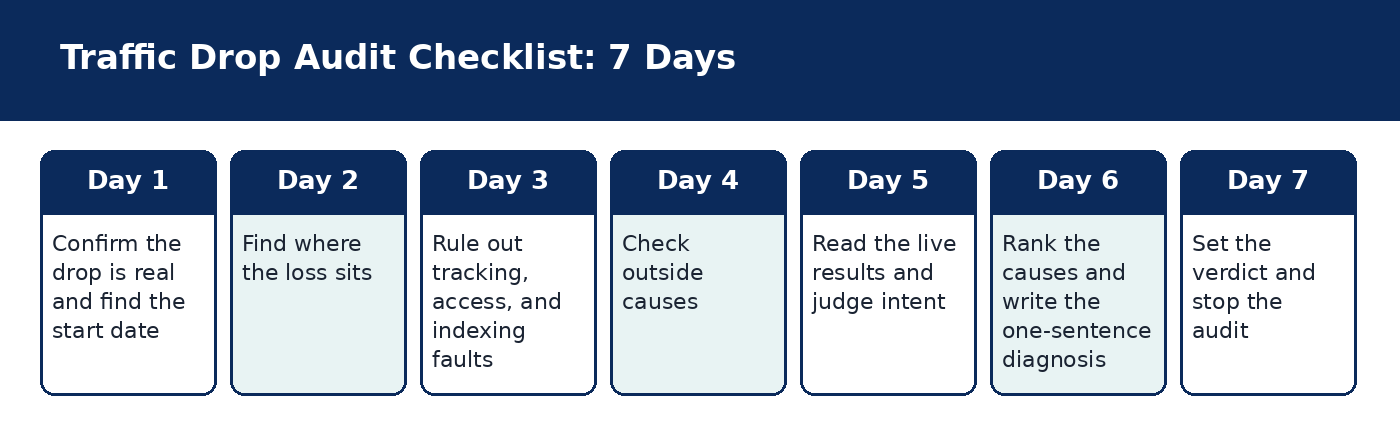
Day 1: Confirm the drop is real and find the start date
Open the Performance report, and use complete days only. Partial days can mislead. Data lag: collected data is usually available in 2 to 3 days.
The newest days can still be preliminary, so read them as unsettled while collection stays open. The graph marks them with a dotted line, so do not treat them as final proof.
Compare equal periods, with weekdays matched, and add a year-over-year view.
Check Google Analytics as the second tool and the Data Anomalies page, and record agreement in the log. Record the start date as sudden, gradual, or stepped, and name no cause on Day 1.
Day 2: Find where the loss sits
Work in this order: Pages, Queries, Countries, Devices, and Search appearance. Use the Compare tab, such as last 3 months against the previous period. The table shows a Difference column, and only one comparison can run at a time.
Sort by Clicks Difference, to order by clicks lost. The Pages table shows sitewide loss, one group, or one key page. If the loss is sitewide, check the Page indexing report, and if one group is hit, inspect a few pages.
The splits to record on Day 2, and what each split can show.
| Split to record | What to write | What it can show |
|---|---|---|
| Pages | Top pages by clicks lost | Sitewide, group, or one page |
| Queries | Top queries by clicks lost | Which terms lost most |
| Countries, Devices | Where the loss sits | Local loss, not sitewide |
| Search appearance | Appearance that lost clicks | One result type only |
Check search types separately, for web Search, Images, Video, and News. A one-type loss points to a narrower cause.
The Search Console comparison method owns the full comparison method for a traffic drop.
Day 3: Rule out tracking, access, and indexing faults
Check the tag, then the reports, then the pages. Set up the tag on every website that should send data, with the correct measurement ID, and check the code is live. Record any consent change from the change log.
Day 3 checks and proof.
| Check | Report or tool | What proves a fault |
|---|---|---|
| Manual action | Manual Actions report | Action shown in report |
| Security issue | Security Issues report | Threat shown, pages named |
| Page indexing | Page indexing report | Spike in issues, key pages, including redirect error |
| Top losing pages | URL Inspection tool | Blocked crawl, noindex, wrong canonical |
Search results can hide some pages, or the whole site, after a manual action. Google sets a manual action after a human review against spam policies. A security issue means Google found a threat, and affected pages can show a warning label or warning page.
Use only the short Page indexing reasons in this list: server error, redirect error, robots block, and noindex. A page with this fault does not appear in Search results. Googlebot must crawl the page to see the rule.
Use URL Inspection on top losing pages only, and read the indexed version. It shows the declared and Google-selected canonical.
A URL in Google results does not guarantee that the page will appear for a query. The canonical URL is the preferred URL for duplicate pages.
Record any site move with its date in the log. Use permanent redirects, and avoid redirect chains.
Fix-now exceptions may be fixed on Day 3 only, when a check in this section proves the fault. Check an outage or server errors with the hosting or server check named in Before Day 1. No content rewrite is allowed on Day 3, even if a page looks weak.
Day 4: Check outside causes
Day 4 checks outside causes only. Check an algorithmic update, a technical or security or spam issue, seasonality and changing interests, and a site move or migration.
Open the Search Status Dashboard at reading time. Read the Ranking row on the Summary page, and note the start and end dates if shown. Recheck if no end date is shown.
A core update is a broad change made several times a year, with notice on the list of ranking updates. A rollout runs over time, and analysis should wait until it finishes.
Do not record a date or scope claim from memory, and do not assert completion unless the Dashboard shows it. Do not judge a shown update on Day 4.
Filter the Performance report to one query at a time, starting with the top traffic queries, and check them on Google Trends. It shows topic interest only, as one data point, not a single site’s demand.
Record the top losing queries for Day 5. The traffic drop or AI Overview test owns the full results pattern, with its confirmation checks. The diagnostic checklist after a Google update owns the full update pattern.
Day 5: Read the live results and judge intent
Search the top losing queries while logged out, and note the result types above and around the organic results. Judge whether the query now wants a different page type, and record it in the log.
Compare winning pages on coverage and currency only. Do not rewrite on Day 5, even if a gap looks clear.
No cause is named from live results alone. A cause needs support in the log.
Day 6: Rank the causes and write the one-sentence diagnosis
Re-read the log from Day 1 to Day 5, and test each cause against the log.
This table ranks each possible cause.
| Possible cause | Evidence in the log | Loss it may explain | Rank |
|---|---|---|---|
| Write the cause here | Write the evidence here | Most, some, or little | Write the rank here |
Write one log sentence: what fell, where it fell, when it fell, and the strongest cause, with evidence named. If two causes fit, record both, and state what would separate them. No fix is chosen on Day 6.
Day 7: Set the verdict and stop the audit
Re-read the log, and confirm the signal holds across the window. Confirm no check was skipped, and the freeze held.
Set one verdict from the Day 7 verdict section after the worked example. Record the verdict, the evidence, and the next step. Add no new check on Day 7, and change no verdict on one good day or one bad day.
A worked example: one 7-day audit, filled in
This example is illustrative only. It uses no real site, no real client, and no real Search Console data.
The filled in example log, Day 1 to Day 7.
| Date | Check | What was found | Next step |
|---|---|---|---|
| Day 1 | Confirm the drop | Clicks fell by half over one week, illustrative. Impressions held at the old level, illustrative. | Find the loss |
| Day 2 | Find the loss | Loss in one template only | Rule out faults |
| Day 3 | Rule out faults | No manual action, no security issue | Check outside causes |
| Day 4 | Outside causes | No update shown, demand held | Read live results |
| Day 5 | Read live results | New types above organic results | Rank the causes |
| Day 6 | Rank causes | Result type change ranked first | Set the verdict |
| Day 7 | Set verdict | Act on a named cause | Stop the audit |
Day 1 confirmed the drop, and Day 2 narrowed the scope to one template. Day 3 ruled out simple faults.
The log showed no manual action and no security issue. The Day 7 verdict followed from the whole log.
Copy the blank log below. Do not copy the illustrative numbers.
| Date | Check | What was found | Next step |
|---|---|---|---|
| Write here | Write here | Write here | Write here |
| Write here | Write here | Write here | Write here |
The Day 7 verdict: fix a named fault now, act on a named cause, wait and recheck, or get a second pair of eyes
The Day 7 verdict has 4 options. Set only one verdict, and record the evidence for it.
The 4 verdicts, the evidence each one needs, and the next step.
| Verdict | Evidence needed | Next step | Do not do yet |
|---|---|---|---|
| Fix a named fault now | Day 3 check proves a fault that can be fixed alone | Fix that fault only | Do not rewrite content |
| Act on a named cause | Log names one cause, and no Day 3 fault is proved | Follow the next step in After Day 7 | Do not start second fix |
| Wait and recheck | Rollout unfinished, data incomplete | Recheck Dashboard, data | Do not change pages |
| Get a second pair of eyes | Two causes fit, or none | Share the log and the actual data with a second reviewer | Do not pick a cause |
Do not set a final verdict on Day 7 if the waiting week has not passed. Set wait and recheck instead.
After the audit, for core update drops only, use the judging rule Google states. Confirm the core update has finished, check the Dashboard, and note its start and end dates. Let at least a full week pass after the update ends, then open Search Console to judge the site.
Judge the week after the waiting week against the week before the rollout started. Assess how top pages and queries ranked before the rollout and after it, and review search types separately.
If completion is not shown, the verdict is wait and recheck the Dashboard, with no date promised. This judging rule applies only to core update drops, with no recovery figure.
Do a deeper assessment for a large fall when it moves from position 4 to 29.
What not to change during the 7 days
- Rewrites: a rewrite changes the page the data describes.
- Deletions: the evidence itself goes when a page is deleted.
- Title changes: clicks change when the title changes.
- Template changes: many pages change at once.
- URL changes: the ranking record restarts with a new URL.
- Bulk redirects: many pages move at once.
- Disavow: link signals change with a disavow file.
- Link building: a new cause is added by new links.
- Date changes alone: noise is added by a new date with no new content.
Deletion is the last option. Delete content only when it cannot be saved, and only after the audit ends.
Choose only changes that serve users and will last. Do not make a change only because it was said to harm SEO.
The Day 3 exceptions still apply, proved by a check only. They are site outage or server errors, a noindex or robots fault, a security issue, and a broken redirect. These exceptions were tested first on own-funded, in-house assets, before they were used for clients.
After Day 7: where each verdict goes next
Fix a named fault now means one fix only. Recheck it in Search Console after the fix.
Act on a named update-timed cause: read this checklist: Why Did My Traffic Drop After a Google Update? A Diagnostic Checklist. For a click loss pattern, the traffic drop or AI Overview test owns the full clicks down test, with its confirmation checks. The core update recovery process owns the full fix process after diagnosis.
Wait and recheck when the rollout is unfinished or the data is incomplete. Recheck the Dashboard and the data while you wait. For a deeper comparison, the Search Console comparison method owns the full comparison method for a traffic drop.
Get a second pair of eyes when two causes fit, or when none fits. Share the log and the actual data with a second reviewer. On recovery timing, read How Long Does Core Update Recovery Actually Take?, which owns recovery timing questions.
FAQ
How long does a traffic drop audit take, and why 7 days?
A traffic drop audit takes 7 days in this checklist, with one job per day and a verdict on Day 7. Seven days gives time for complete data and for a rollout to finish. The order protects the evidence, so no change hides the cause.
Should I change anything during the 7 days?
No change should be made during the 7 days, apart from the small set of fix-now exceptions. Each exception must be proved by a Day 3 check, and no content rewrite is allowed.
What do I do on Day 7 if the cause is still unclear?
Set the verdict to get a second pair of eyes, and share the log and the actual data with a second reviewer. Record the causes that fit the evidence, or record that none fits, and state what would separate them.
Want help applying this to your site? Contact Imran Ali to book a free 30-minute meeting.